 fps.ms Team
 Once your server has finished installing, you are ready to connect to your server and start playing. There are two ways to connect to your server:
- Through the alias address shown below your server title on the Console page. Your server address will look something like
mango.fps.ms:25565
- Through a subdomain you can create for your server (example:
caner.playmc.be) - Through a custom server IP address you can create with your own custom domain (example:
mc.caner.com)
Connecting to your Minecraft Server
Once you know what your address is (alias, subdomain or your custom IP), it's ready to start playing on your Minecraft server.- Start up Minecraft.
- On the home screen, press Multiplayer
- Press on Add Server
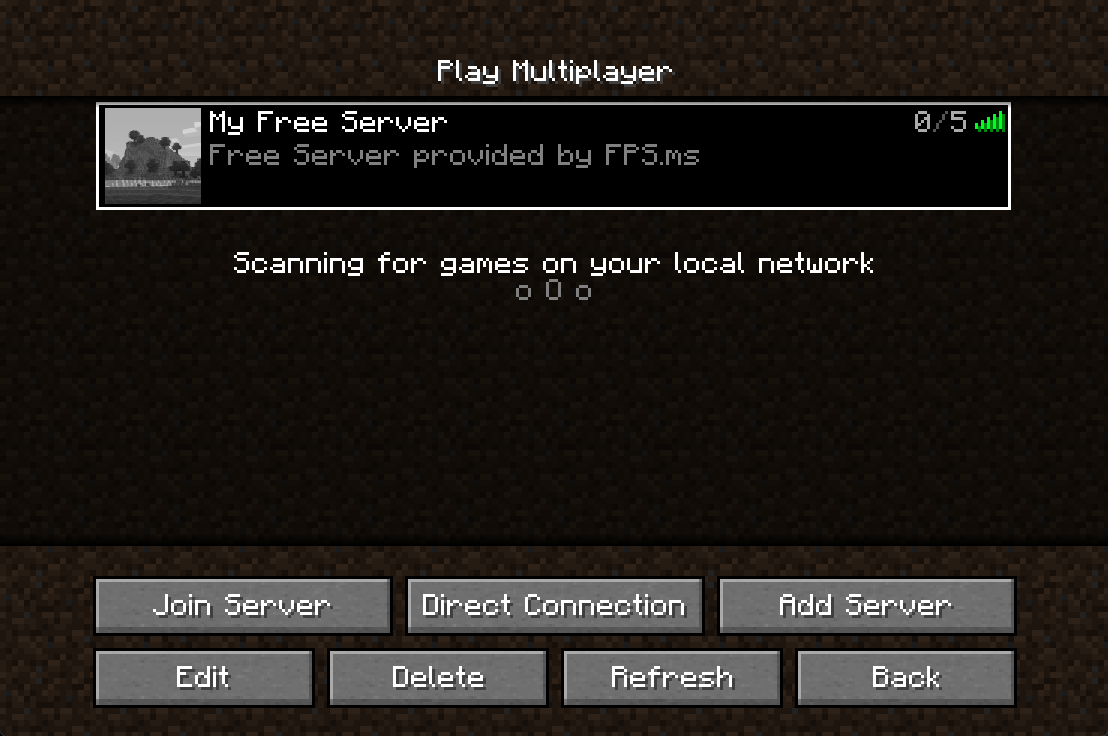
- Under Server Name, give your server a name to identify it (e.g.
My Free Server) - Under Address, type in the address of the server (alias, subdomain or custom IP)
- Click on Done
- Your server has now been added to your Multiplayer list and you should be able to see it online. Double press on your server and you are ready to play!